
In this lesson we’ll cover:
- Inviting Teammates
- User permissions
Inviting Teammates
Easily add your colleagues to help manage your external workforce! Collaborating on talent acquisition processes and project assignments is easy in Worksuite- review the information below to understand how to invite & manage your internal team members.
- In your Worksuite, navigate to Settings > Team > Teammate.
- Click Invite Team Member.
- Enter the team member's email addresses and select their permission level. Learn more about user permissions here.
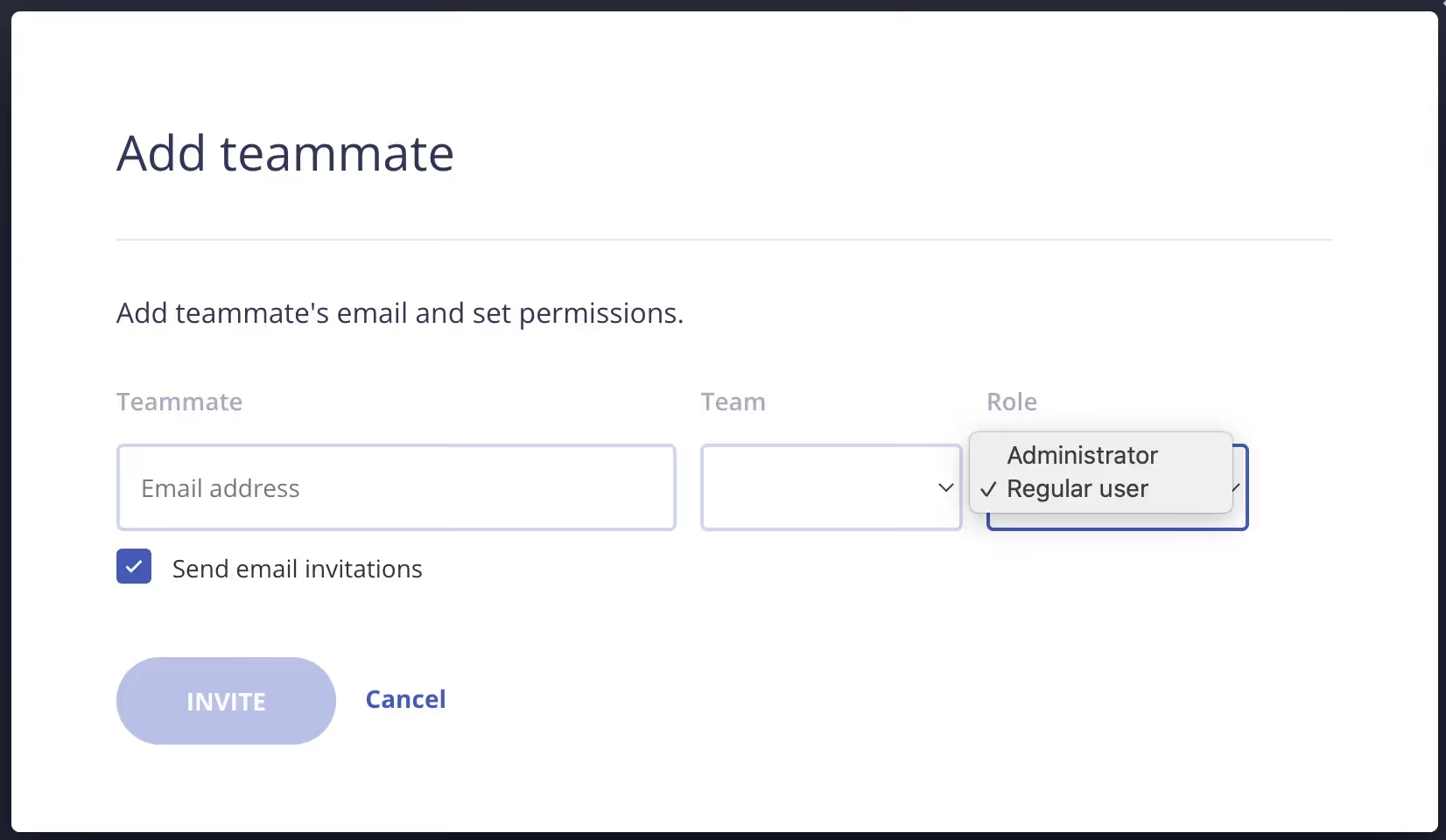
Note: The invited team member will get their invitation via email and will be able to update their own personal settings.
User Permissions
Here you will learn how to help your team focus on only what they need by adjusting user permissions and access levels. Worksuite gives you the flexibility to set module permissions based on team participation or individual role.
Only system administrators can manage internal team permissions for each Worksuite module based on user type and role. They can also design quick access dashboards to focus your teams and increase efficiency in daily tasks.
There are two user types in Worksuite:
- Admin for administrative users who need access to all aspects of your Worksuite account.
- Regular for users who don't need everything, just what pertains to their job role.

Adjusting Permissions for Regular Users
- Navigate to the Settings menu and select User Permissions.
- Use the checkboxes to determine which aspects you want your regular users to access.
.avif)
Note: Regular user permissions can be adjusted on the individual level by clicking on Manage Permissions by their name on the Team mates tab.
For example, if you have a user who shouldn't have workflow edit capabilities but is needed for payments, you can mark them as a Regular user and individually adjust their settings to remove workflow edit permissions and enable schedule payments or view confidential agreements (W9s).
Exercise
- Invite 2+ Teammates to the platform and configure their user permissions.
Next lesson
Custom Fields
View →