
In this lesson we’re going to setup both Custom Fields and Partner Custom Fields — so you can:
- configure your Payments and Task form fields based on your organization’s requirements
- collect all the Profile information you need from your talent in an organized and scalable way
Custom Fields
Custom Fields allow you to create a custom fields within each pre-defined template that you will use for new Opportunities, Projects, Tasks & Payments. This will allow you to create a set of custom fields that you can add to provide more information for your external talent when they submit a proposal, respond to a job opening or task, or create payments.
Note: if you have multiple Opportunity or Task Templates, you will have restricted access to add custom fields to opportunity or task custom field templates.
For assistance in adding more fields, reach out to us at support@worksuite.com.
How to add, and edit custom fields in custom field templates?
- Click on your avatar to select “Settings” from the dropdown menu
- Select the “Custom fields” tab
- Select the template where you want to add/edit custom fields
- Click on “Add field” to add a new field to the template
- Click on the existing field if you want to edit the field or options
- Click “Save” at the bottom left
Custom Partner Fields
Profile custom field configuration for talent profiles in Worksuite is an optimal feature that will help you add custom profile fields in Worksuite UI by yourself.
1. Navigate to your settings
2. Select Partner custom fields
❗ Note: Only admins will have access to create profile custom fields
3. Start by clicking on the section and a side panel will open for you to create your fields.
.avif)
.avif)
4. Create the field you'd like with the field type, and decide if it will be visible to the talent.
Important Notes About Partner Custom Fields
- The fields will be available on all talent types (freelancer, candidate, business, etc).
- To remove a value from a drop-down, reach out to support@worksuite.com.
- Deleting a section will remove the fields within that section.
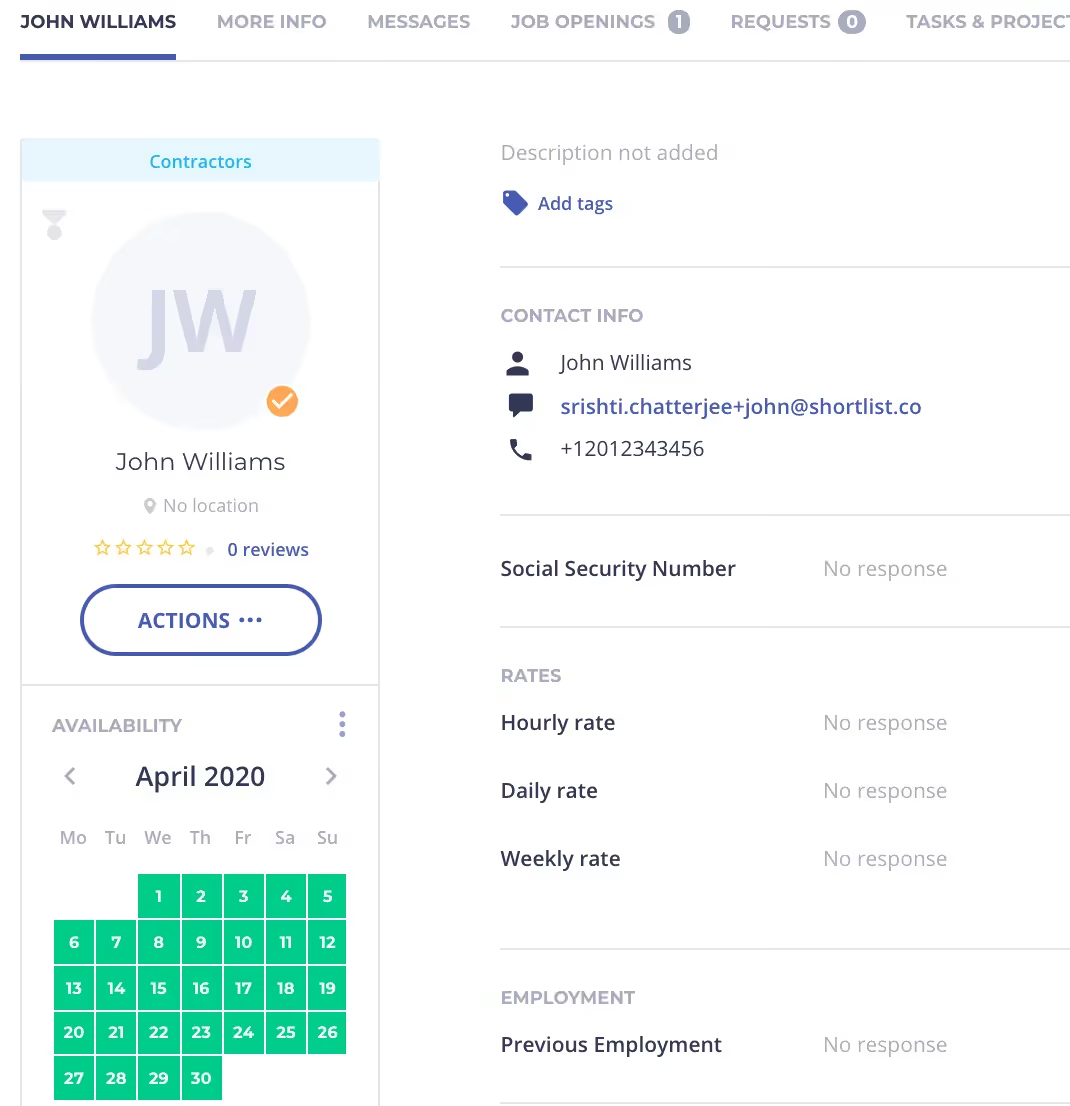
The fields created will directly show up in the vendor's profile. If the field is created in the 'Main' section then it will be showing without any section as Social Security Number in the below screenshot and if it is created within a section it will be showing up as Previous Employment within the Employment section.
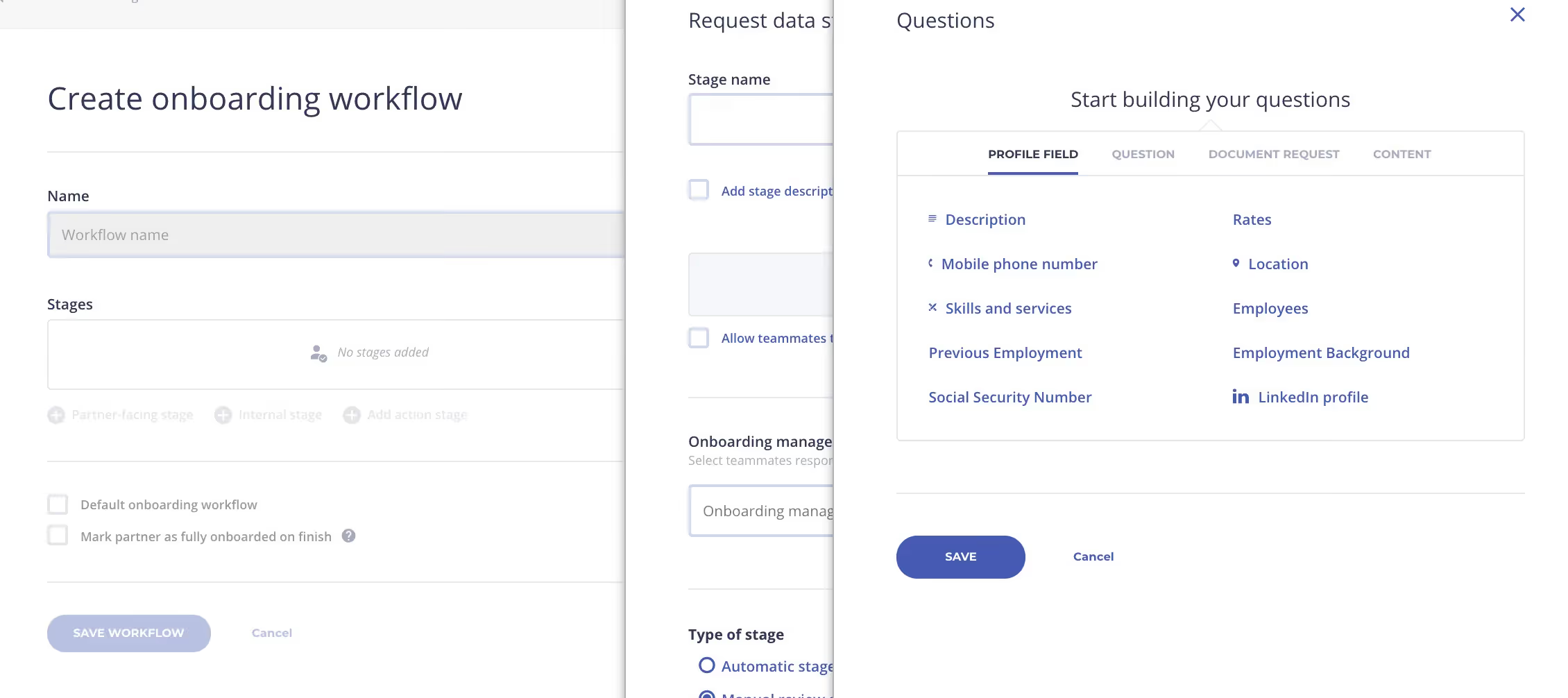
The fields will also be available for addition to the Onboarding Workflows.
Exercise
- Create at least 1 Custom Vendor Field to collect information from your talent (appears on their Profiles), based on your organization’s requirements.
- Create a Custom Field for Tasks and/or Invoices, if you need an additional field in the form to suit your organization’s needs.
Important Notes About Partner Custom Fields
- The fields will be available on all talent types (freelancer, candidate, business, etc).
- To remove a value from a drop-down, reach out to support@worksuite.com.
- Deleting a section will remove the fields within that section.
The fields created will directly show up in the vendor's profile. If the field is created in the 'Main' section then it will be showing without any section as Social Security Number in the below screenshot and if it is created within a section it will be showing up as Previous Employment within the Employment section.
The fields will also be available for addition to the Onboarding Workflows.
Exercise
- Create at least 1 Custom Vendor Field to collect information from your talent (appears on their Profiles), based on your organization’s requirements.
- Create a Custom Field for Tasks and/or Invoices, if you need an additional field in the form to suit your organization’s needs.
Next lesson
Agreements Setup
View →