
Smart Status
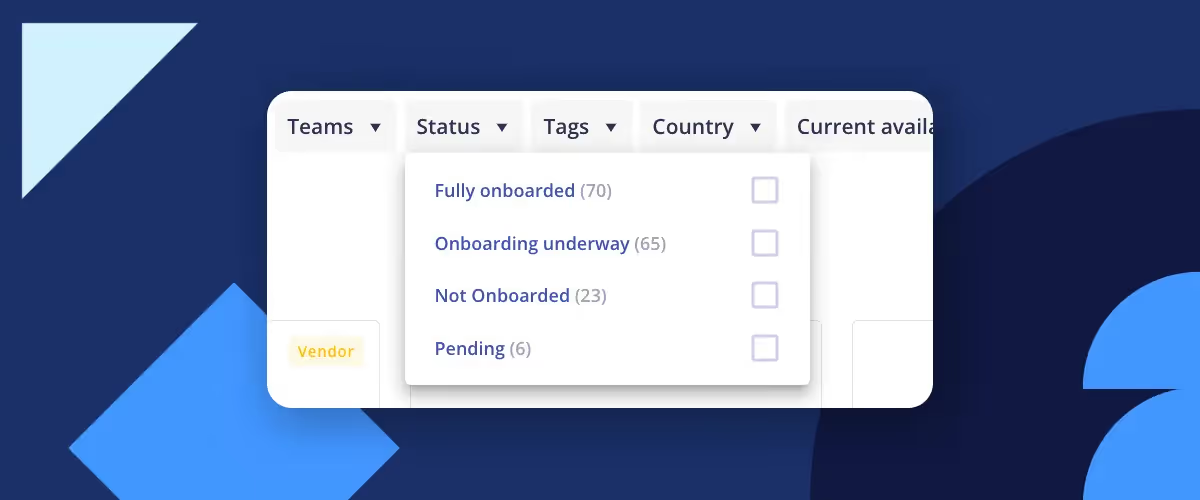
Status indicates where the talent is currently in the invitation and onboarding process. In this lesson we’ll go through what actions you should take, depending on the status – and how you can do this in batches using Bulk Actions.
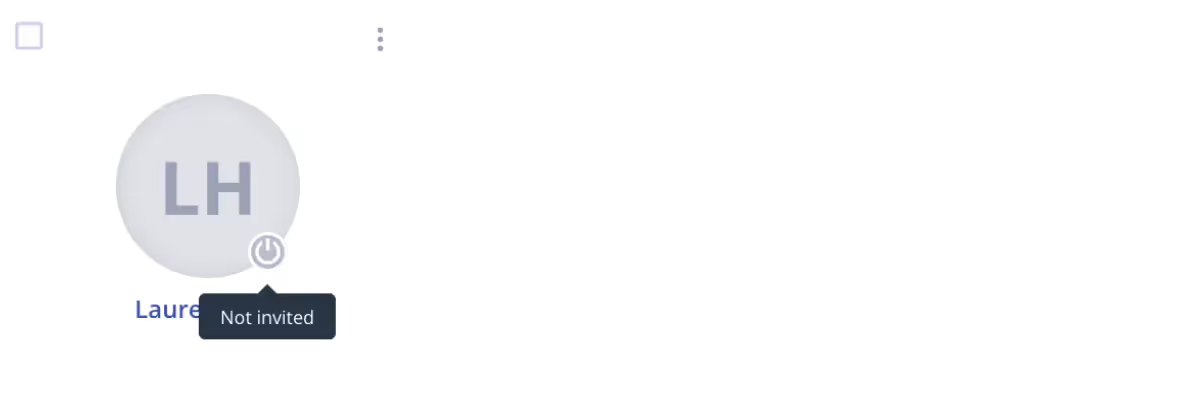
Status: Not invited - a grey button symbol will indicate this
- What this means: Sometimes we add a bunch of freelancer Profiles, and forget to actually invite them to Worksuite. Maybe you were importing your existing rolodex with names and email addresses, and now you want them to fill in the rest. Or maybe you're just storing information internally.
- Action to take: Use Bulk Actions to “invite” them to Worksuite, then assign them to the relevant Onboarding Workflow via “Manage Workflows.”
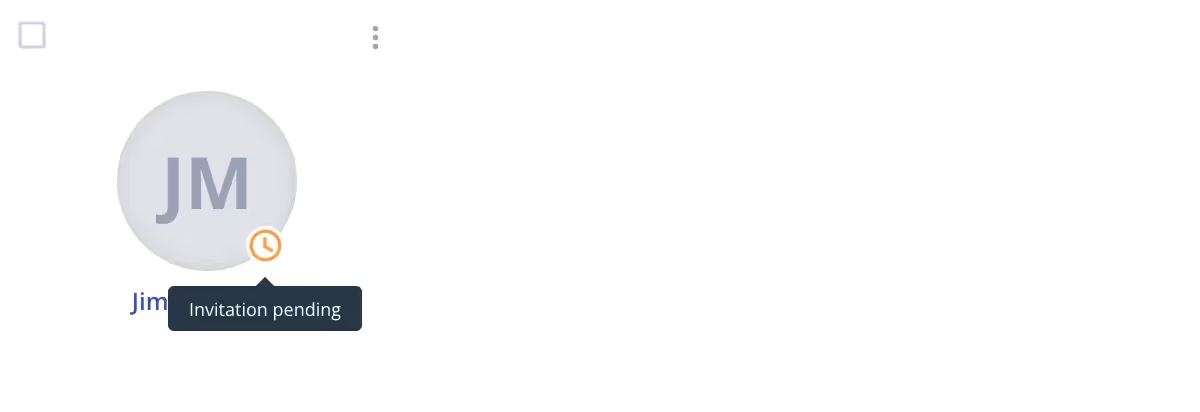
Status: Invitation pending - if the talent has been invited but has not yet registered, this will be indicated by a yellow clock symbol.
- What this means: They’re not in your Worksuite yet. You shouldn’t assign them a task, because they haven’t completed their onboarding or engaged with you. It’s possible they didn’t see your invite notification, and just need a gentle nudge.
- Action to take: Send them a reminder with Quick Actions, and ask that they complete their onboarding. Or, it’s OK to archive them!
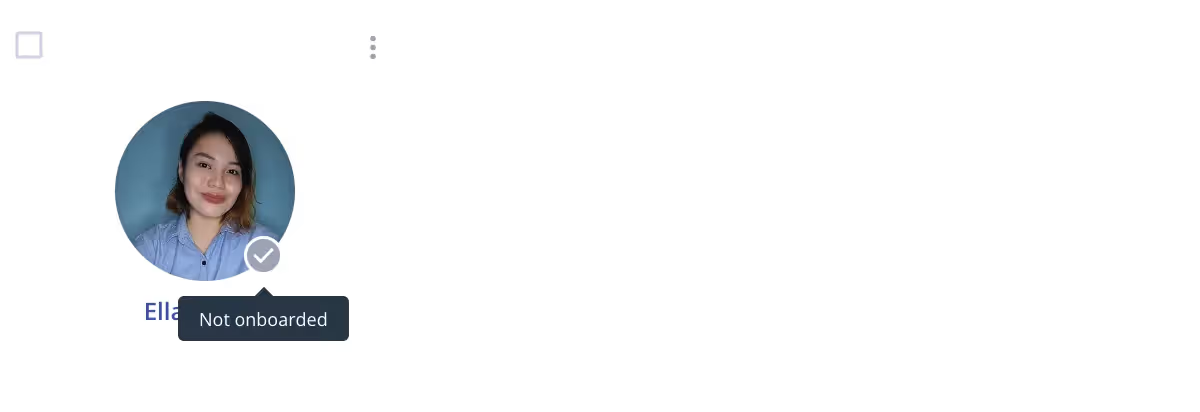
Status: Not onboarded - the talent has not yet begun the required onboarding workflows.
- What this means: They haven’t yet been assigned the appropriate Onboarding Workflow. Perhaps they have been invited to Worksuite, and even filled out all their Profile details to 100% completion. But you still need them to sign an official agreement or complete certain steps.
- Action to take: Select the checkbox next to the freelancer(s) who are “Not Onboarded”, then use Bulk Actions at the top bar → “Manage Workflows” → then assign them to the required Workflow.
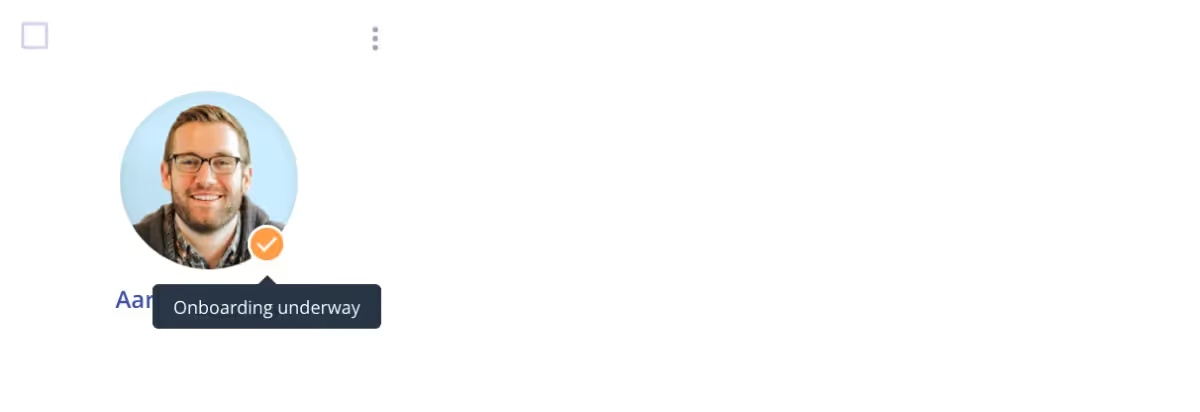
Status: Onboarding underway - the talent has not yet completed all onboarding workflows assigned to them. This could be because they have not completed the initial onboarding or because a previously assigned workflow has been updated to require more information.
- What this means: They are in the middle of filling out their Profile details. The good news is, they are almost there! The only risk of starting work with them before it’s a green check mark is, you may be missing important bank details and tax info — which means they won’t be payable yet.
- Action to take: Send a quick message saying something like, “Hi ____, it looks like your onboarding isn’t complete. Use this link to fill it out and your dashboard will tell you what’s missing. If you could please complete that soon, I look forward to working with you! Thanks.”

Status: Fully Onboarded the profile status updates to 'Fully Onboarded' in the below situations.
- What this means: Green check mark! This is our goal to get people here, especially your go-to talent that you plan on working with again and again.
- Action to take: No action needed, other than giving them the next task/assignment!
Note: The profile status of the talents can change from time to time based on the progress in the onboarding workflow or the updates made to the properties (optional/required) of the workflow.
Bulk Actions
Click around in the above demo to see how to use different bulk actions for your talent profiles in Worksuite!
Bulk actions are used to take a single action on multiple talents at once and not spend time taking these actions one by one on each talent.

Exercise
- Explore the Bulk Actions in your Talent Directory, and try adding multiple freelancers to a group or list.
Next lesson
Overview: Onboarding Workflow
View →