
Adding and inviting talent is the beginning of your talent relationships within Worksuite.
Sending the Invitation
You can choose one of the following option to invite talent:
- Save and invite them later
- Invite them now with the standard invitation email
- Invite them now with a personalized message in the invitation email
Worth Noting: Adding a Profile in your Talent Directory does not mean you’ve invited them yet. Don’t worry! The talent will not receive an email notification until you’ve officially invited them.
This means you can quickly get multiple Profiles set up first, and get your Onboarding Workflows dialed-in. Then bulk-invite later with 2 clicks and 1 message.
Learn more in the next lesson: Statuses & Bulk Actions.
Bulk Inviting Talent
You can send invitations to multiple contractors at once.
- Click the checkbox in the top-left corner of the talent tiles (or table rows) you want to invite.
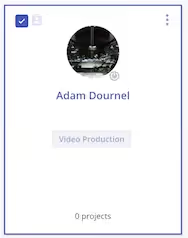
- In the top bar that appears, you can select all visible talents if desired.
- Click on the Invite To Your Worksuite icon.

- You will have the option to choose the options as indicated above for single invitations.
Invitation Links
Invitation links give you a more personal way to invite your talent to Worksuite and are a great way to engage teammates who are not using the Worksuite platform.
With these links, you can send out invitations from your email. In addition, links can be configured with workflows, relationship managers, and groups so that you can create different links for different talent categories.
Creating Invite Links
- From the home screen of your Worksuite account, select the Get Invite Link button in the upper right corner.
- Select the onboarding workflow you want to connect to this link.
- Select the Relationship Manager for this invite link (optional).
- Enter the Group(s) talent should be added to when they register with this invite link (optional).
- Click on the Get Invite Link button.
- Copy and paste the link into a custom email sent from your email address.
- When your external talent receives your email, they will register for your Worksuite and complete any onboarding items you assigned to this link.
Exercise
- Add & invite your new talent to the Worksuite platform.
- Try customizing the message when you bulk-send the invitation to multiple freelancers!
Next lesson
Statuses & Bulk Actions
View →