
In this lesson, you’ll get an overview of Contracts module. Read below to learn more about this flexible feature! In the following lessons, we’ll cover:
- What are Contracts?
- Creating a Contract Template
- Creating a Contract Workflow
- Adding contracts agreement template
What are Contracts
Contracts is a new module that improves customer engagement with freelancers and contract management. It aims to offer a comprehensive and reliable system that addresses all critical aspects of freelancer engagement, gaining enterprise customers' trust across many functions—business, legal, compliance, etc.
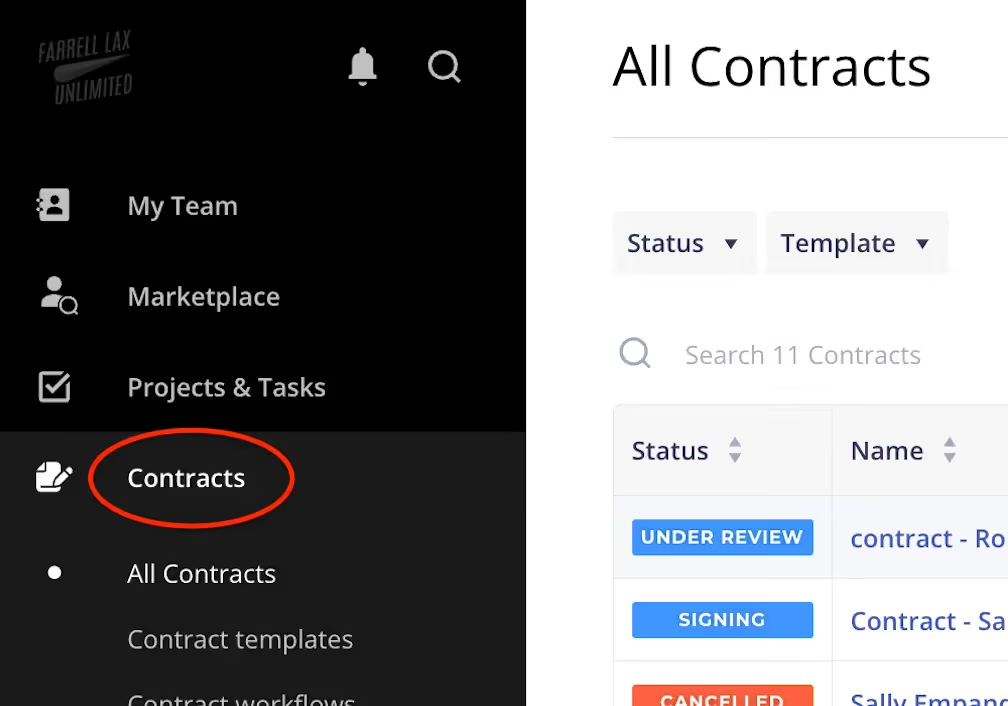
Important: If you do not see the Contracts menu option (see screenshot) in your Worksuite instance and are interested in taking advantage of this new functionality, please contact your Customer Success Manager to discuss your options.
Creating a Contract Template
Steps:
1. Go to Contracts and Create Template
2. Currently, you can choose between Fixed Rate, General Framework and SOW
3. Choose one of the type. We will learn more in detail about the types of contracts in our next lesson.
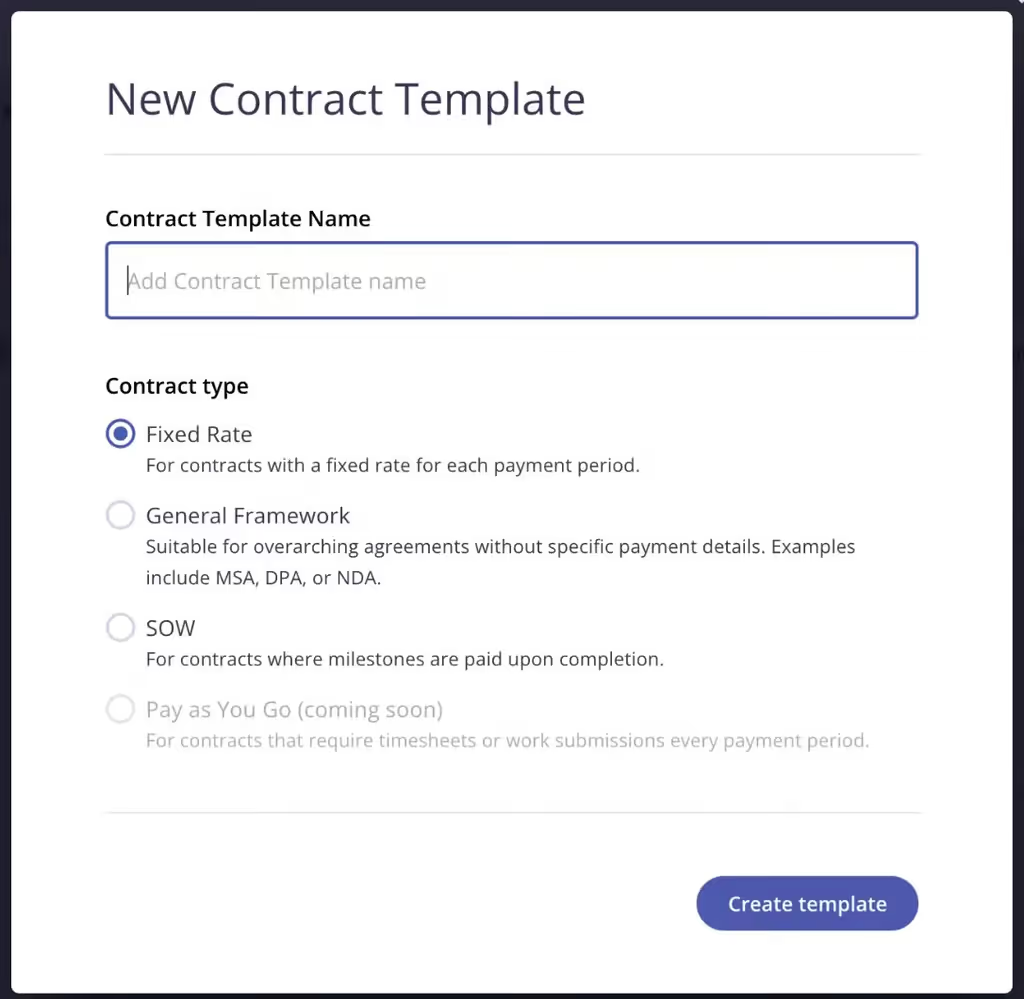
4. Select Contract Type
5. Complete the Contract wizard by filling in the contract details and adding any other required custom fields that you want to include.

6. Navigate to Contract Workflow section and choose a contract workflow for the template at this stage. Please note that selecting a workflow is optional.

7. Next, navigate to Acceptance stage. In Contract Acceptance, you can outline the method for accepting the contract. One option involves signing a document, while another entails a straightforward acknowledgment and acceptance through a simple button click.

8. For the signed agreement scenario, choose the agreement from the dropdown menu; the listed signatories and their order are baked in in this template, but you can preview it here.
Enabling the preview option before selecting the checkbox will allow the buyer to review the Agreement generated from the contract fields before it is sent out for signing.
Besides the obvious benefit of previewing, if customers notice an issue with the agreement, they can edit, make changes, and generate another preview before sending it for signing - something many customers have requested.

9. For the Acknowledge and accept scenario, you have the flexibility to specify the individuals required to accept the contract. It's important to note that this can include multiple people on the buyer side.
- Additionally, you can rearrange the order by dragging items up and down.

10. Next, navigate to Change Request. You have the ability to configure who will accept changes to the Live Contracts and in what order these changes will be approved.

11. Next, navigate to Automations. You can apply various automation directly to the Contract Template here. For now, the basic options are available, such as triggering another workflow (regular workflow) when the contract expires or ends soon.
Example uses:
- Start the "contract renewal" workflow if a contract is Expiring Soon.
- Use the "contract performance evaluation" workflow when a contract is Ended .
- Initiate "Off boarding" workflow when a contract is Ended.
- Trigger compliance rules when NDA or MSA expires (coming soon)

12. Lastly, navigate to Settings.
Creating a Contract workflow
1. Navigate to Contracts > Contract workflows > Add Contract Workflow

2. Next, you will see the familiar interface for configuring the contract with stages.
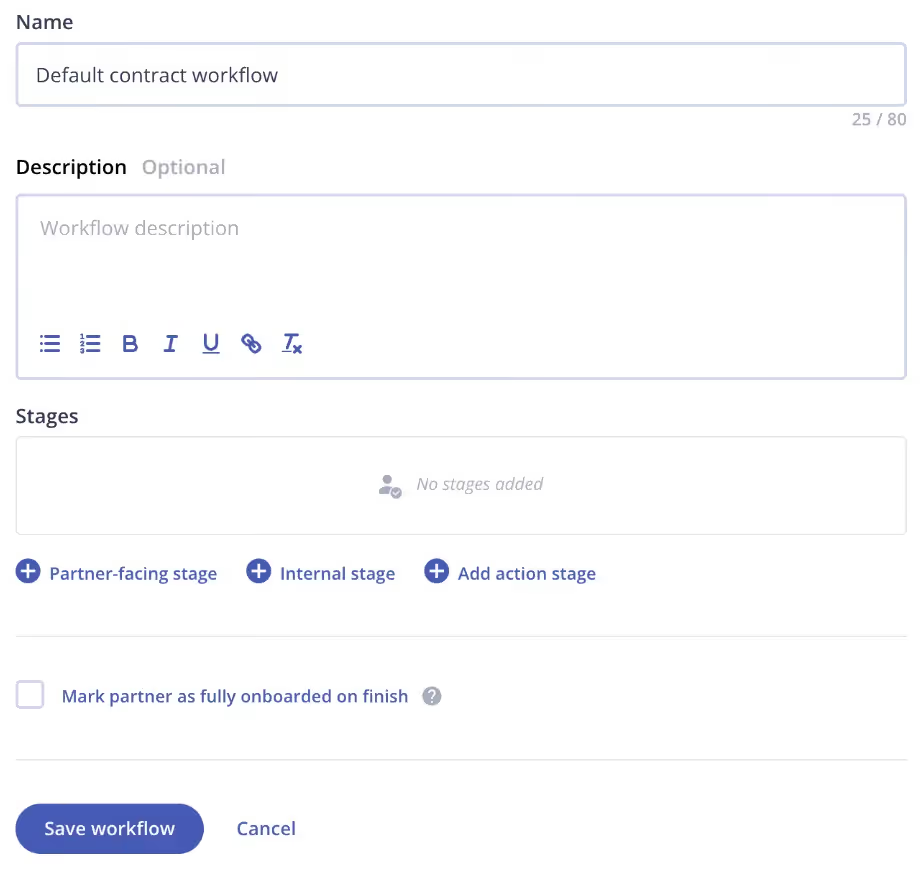
3. Once you have created your workflow, you can link it to the template.

Contracts with or without workflows
Contract with Contract Workflow
Contract Workflow precedes the Contract Acceptance Stage. You can customize the contract workflow by including as many stages as needed, such as:
- Contract Terms Review
- Internal Review
- Compliance Review
The contract will be automatically advanced to Contract Acceptance if no contract workflow is included.
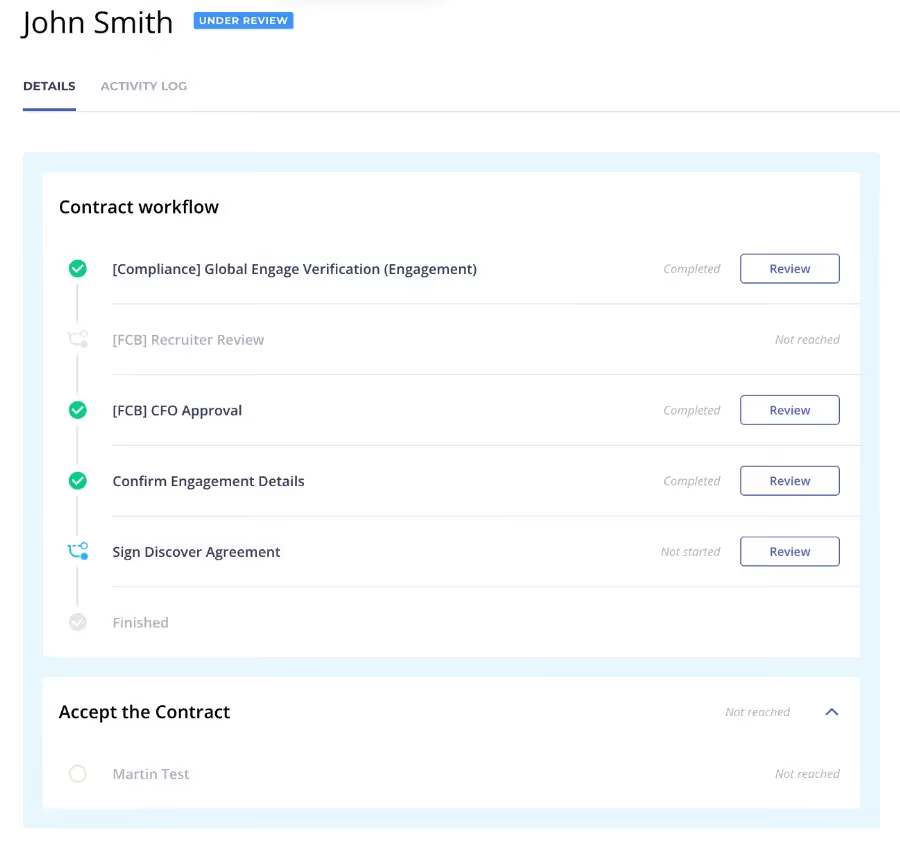
Contract without Contract Workflow
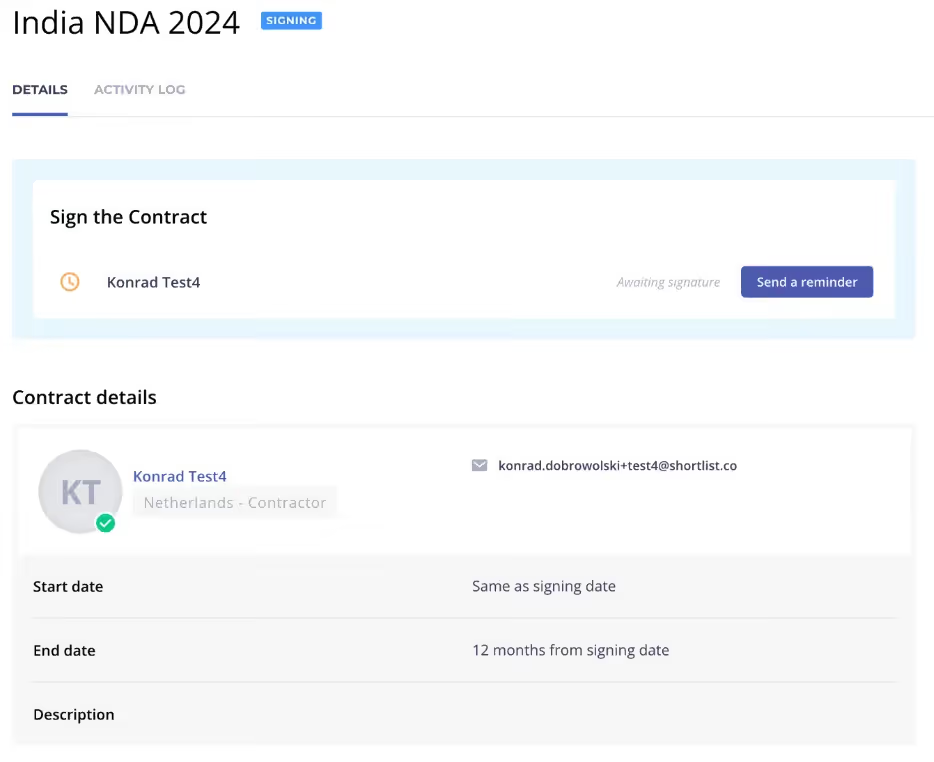
Sometimes, workflows are unnecessary, particularly for generic contracts such as NDAs. Here's an example where no specific workflow is needed: the user is automatically directed to the Signing stage without any manual selection.
Adding contracts agreement template
If you don’t have an agreement template, you will see an alert prompting you to go to Agreement Templates to add one.
1. Go to Settings > Agreements > Add Template. Make sure to select Contract Template.

2. Setting up an Agreement Template is the same as any other agreement template.

3. Use this newly added agreement template in the contract template.
Next lesson
Contract Types
View →