
In this lesson, you’ll get an overview of what more advanced functionality of the Tasks and Projects module.
In this lesson we’ll cover:
- Milestones
- Task Calendar
- Generating a Payment from a Task
- Adding an Agreement/SOW to a Task for Signature
- Quick-Hover “Budget Check” to See How You’re Tracking
Milestones
The Milestones feature in tasks gives you the flexibility to define different completion milestone(s), approve progress, and even schedule payments based on your project budget.
Milestones are added while creating or editing a task. If you choose to add a task milestone, you can add the specific details your talent needs to understand exactly what is required and when.
Milestones are great for larger tasks or tasks that require staged deliverables - you can choose to set the milestone by percentage completion or create mandatory deliverables for your talent to submit as they progress.
Milestone fields
When creating the milestone(s), you will be asked to provide the following information:
- Name (mandatory)
- Description (optional)
- Milestone Manager (optional)
- Deliverables (optional)
- Milestone Fee % (mandatory)
- Predefined % that will help system Admins generate payment for the milestone based on the total budget specified in the task.
Milestone status
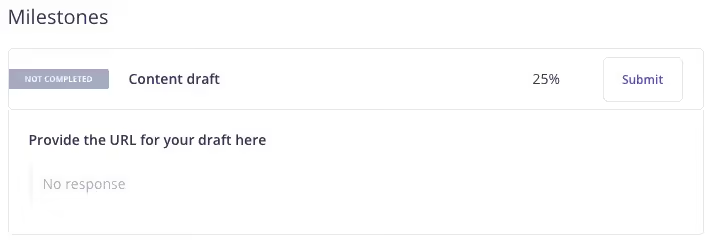
Not completed (default) - This is a default status when a milestone is createdSubmitted - Once the talent submits the milestone the status changes to SubmittedApproved - Once the task owner approves the milestone submitted by talentRejected - Once the task owner rejects the milestone submitted by talent
Milestone paymentsWhen the owner approves the milestone, they will be given the option to create an invoice based on the milestone. Choosing this option is a great way to increase efficiency further and decrease manual tasks!
Creating milestones
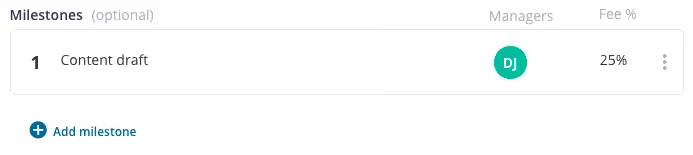
- Create a new task
- After adding your optional budget information, select the option to create a milestone
- Add milestone details
- Add milestone deliverables
- Click to create milestone
- Add additional milestones if desired
- Proceed in adding any remaining details of your task
Talent view
Your talent can review the milestone details within the task assignment. When ready, they can submit the deliverables and the milestone. The milestone owner will receive an email notification of the submission so they can review the progress.
Task Calendar
Task calendar is an optional feature that gives you a calendar view of all the tasks to help you in project and task management.
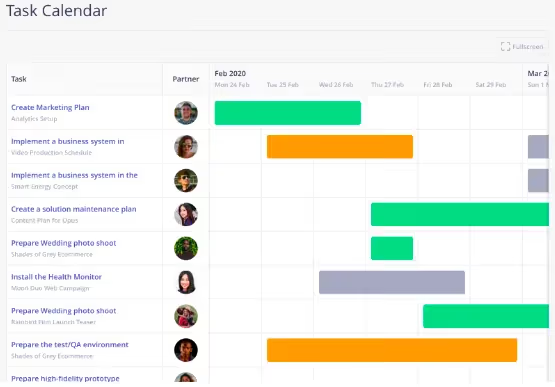
This view is also enabled for talent, so they can efficiently plan their workload by looking at the span of the Tasks they are booked for between Task Start & End Date.
Each row will contain a task with the following information:
- Task name, Project name, and talent avatar (with the name displayed on hovering)
- Task statuses - Draft, Pending, Accepted, under Review
- Tasks will disappear from the calendar once it's marked as Completed
If you would like to turn this feature on in your environment, please email support@worksuite.com
Generating a Payment within a Task Calendar
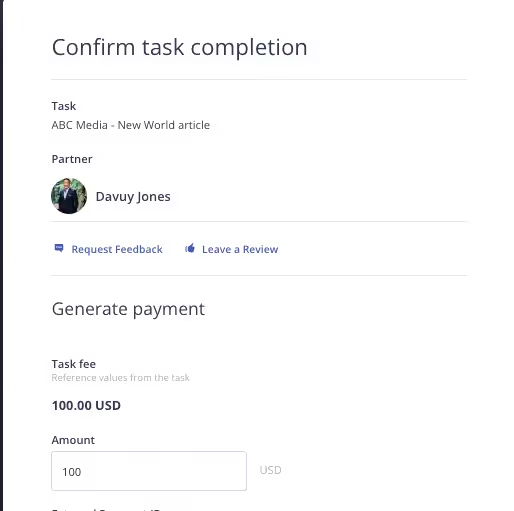
When a task is completed, you or the external talent can add an invoice directly to a task.There are several ways to add an invoice or payment to a task:
- Using the ellipses dropdown menu next to their avatar in the task list view

- Within the task, use the dropdown menu beside the button to update the status or the Add a Payment button.
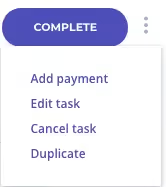

- You can also add payments when approving a milestone.
Adding an Agreement within a Task
You can send an agreement to a talent within a task that has been assigned to them. This agreement can include the description of the task and other information you require (Statement of Work).
You can choose from a pre-configured agreement template or directly upload one from your desktop. An agreement will be created based on the task details you have provided that will be electronically signed and stored under the Agreements tab within the Task.
Quick-Hover “Budget Check” to See How You’re Tracking
Quickly hover to see how your budget is tracking. If you have extra in one project you can easily reallocate and assign work on another project/brand, to available talent, before end of month.
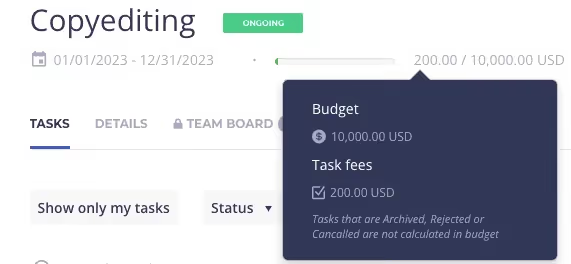
You can even compare how your budget is tracking across ALL your projects, right from the Projects dashboard.
This way, you can quickly make reallocation decisions and optimize your freelancer spend — avoiding blown-out budgets as well as being under-spent.
.avif)
Exercise
- Try out these more advanced features in Tasks & Projects:
- Milestones inside a Task
- Task Calendar
- Generating a Payment from a Task
- Adding an Agreement/SOW to a Task for signature
- Quick-hover “budget check” to see how you’re tracking
Next lesson
Overview: Payments
View →